Gate Web3 Web:
https://www.gate.com/web3
Gate Web3 Cüzdan Google Chrome:
https://chrome.google.com/webstore/detail/gate-wallet/cpmkedoipcpimgecpmgpldfpohjplkpp
Gate Web3 Cüzdan Uygulaması:
https://www.gate.com/mobileapp
Gate Web3 Wallet'ı oluşturun ve içe aktarın
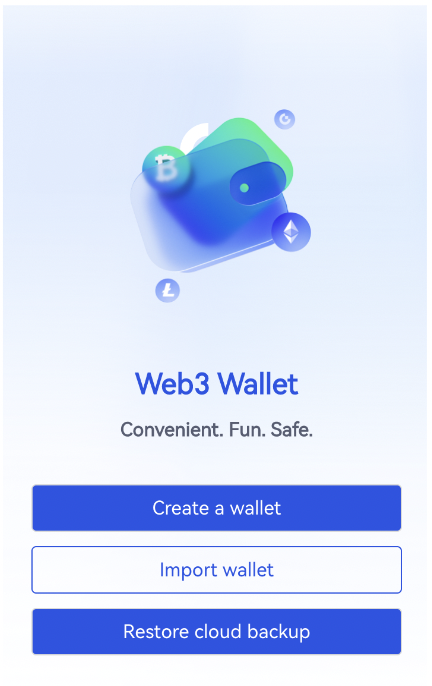
Gate Web3 Wallet ana sayfasına gidin, "Cüzdan oluştur" butonunu seçin ve oluşturmak için parolayı girin; Halihazırda bir cüzdanınız varsa, "Cüzdanı içe aktar" öğesini seçebilir ve cüzdanı içe aktarmak için anımsatıcı ifadeler veya özel anahtarlar girebilirsiniz.
Not: Lütfen şifrenizi ve anımsatıcı ifadelerinizi güvende tuttuğunuzdan emin olun. Şifrenizi ve anımsatıcı ifadelerinizi saklamayacağız. Kaybolduğunda, varlıklarınız kurtarılamayacaktır.
Cüzdanı Bağla
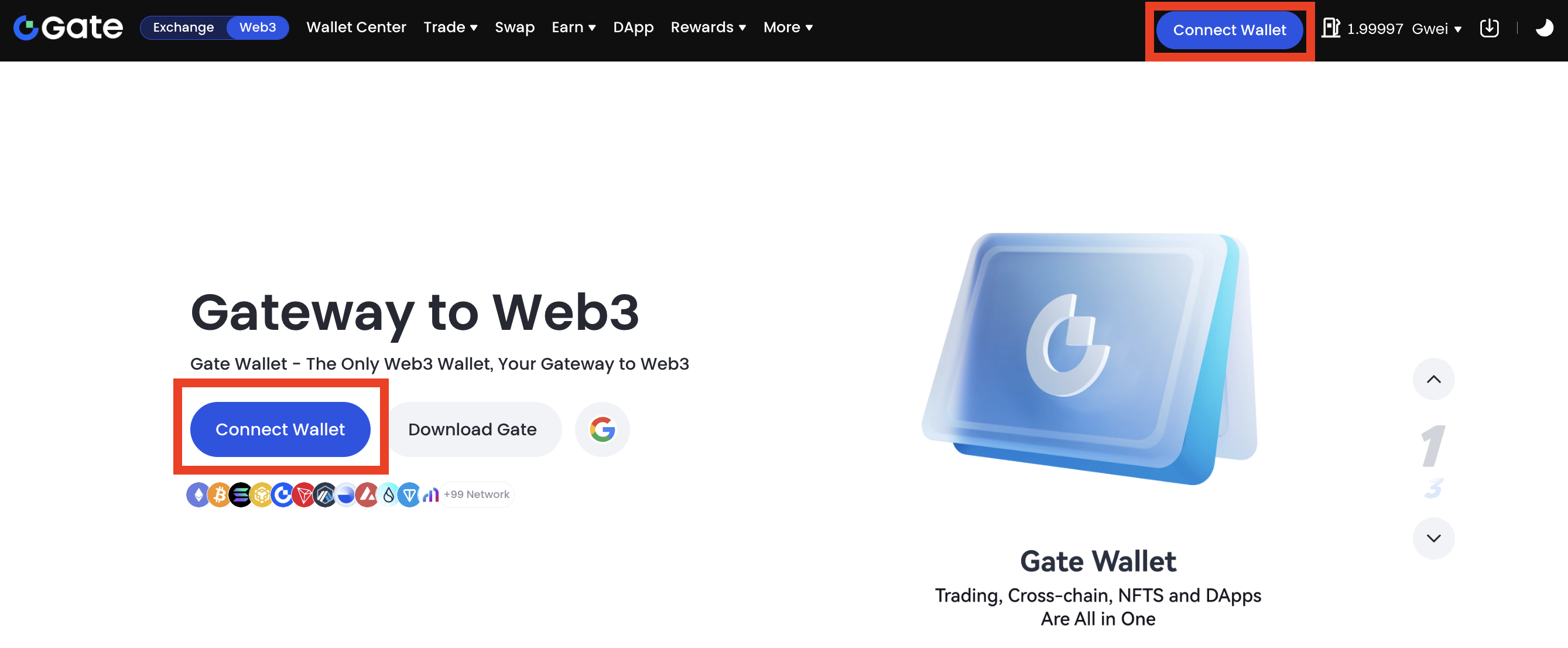
Gate Web3 sayfasına girdikten sonra sayfanın sağ üst köşesinde bulunan "Connect Wallet "a tıklayınız. Gate Web3 Cüzdan eklentisini yüklediyseniz, sayfanın açılır penceresindeki "Cüzdan Bağlan" seçeneğine doğrudan tıklayabilirsiniz; Gate Web3 Cüzdan eklentisini yüklemediyseniz, bağlanmak için açılır pencerenin üstündeki "Diğer Cüzdanlar" seçeneğine tıklayabilirsiniz.
Gate Web3 Cüzdanına Nasıl Para Yatırılır?
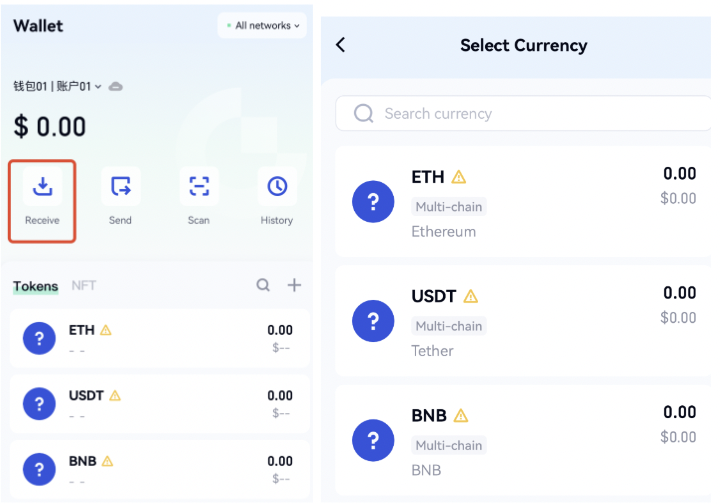
Sayfadaki "Al" düğmesine tıklayın, alıcı token ve alıcı ağı seçin, alıcı adresini kopyalayın ve aktarmak istediğiniz sayfaya yapıştırın.
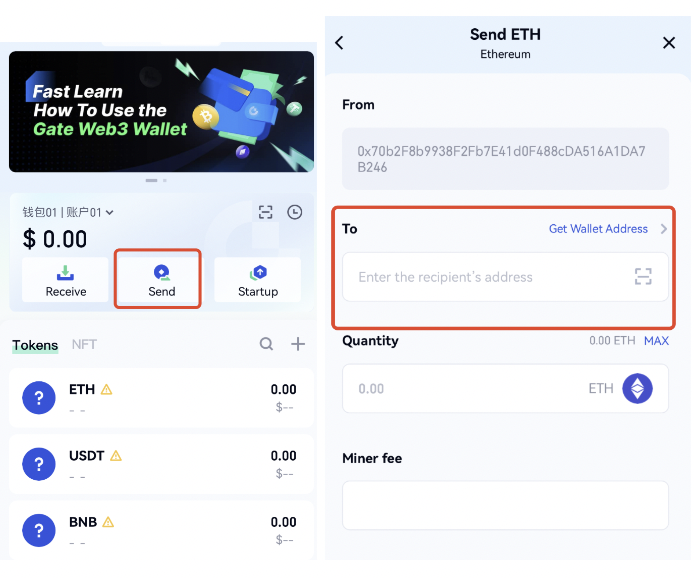
Gate Web3 Cüzdanını Kullanarak Nasıl Transfer Yapılır?
Sayfadaki "Transfer" düğmesine tıklayın, alıcı token ve alıcı ağı seçin ve aktarmak istediğiniz adresi ve miktarı girin.
Gate Web3 Cüzdanı Nasıl Yönetilir?
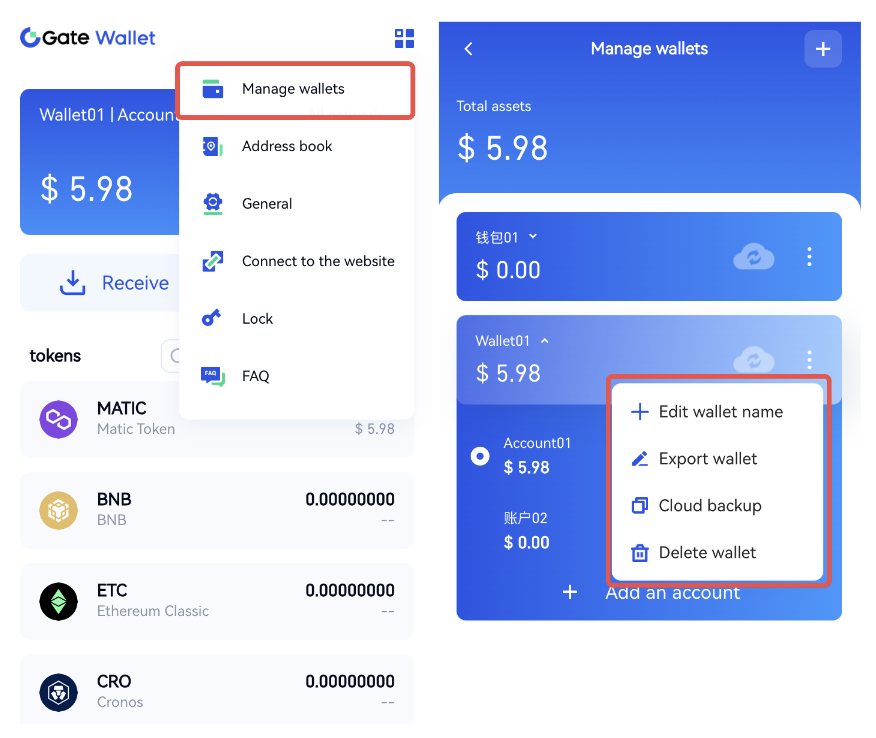
M-cüzdanı açın, sayfanın sağ üst köşesindeki düğmeyi tıklayın ve "Cüzdanları Yönet"i seçin. M-cüzdan yönetimi sayfasına girdikten sonra yönetilecek hesabı seçebilir ve ayrıca cüzdan adını değiştirme, cüzdanı dışa aktarma, bulut yedekleme gibi işlemleri gerçekleştirebilirsiniz.