Open Position
Web Version
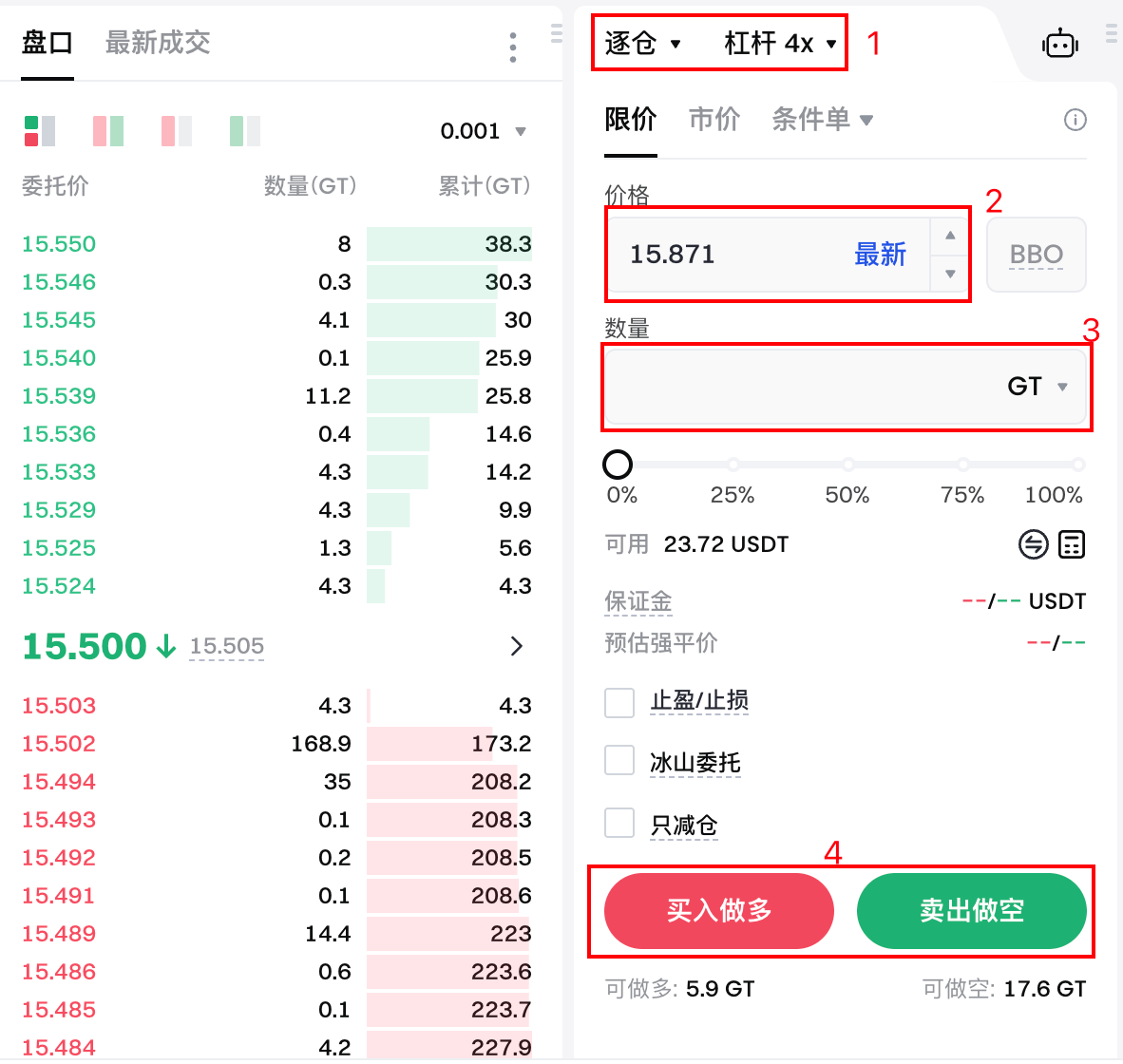
- Click to select cross/isolated mode and set suitable leverage.
- Enter the price, or click a price in the Order Book on the left to fill it in automatically.
- Enter the amount.
- Click [Buy (Long)] or [Sell (Short)].
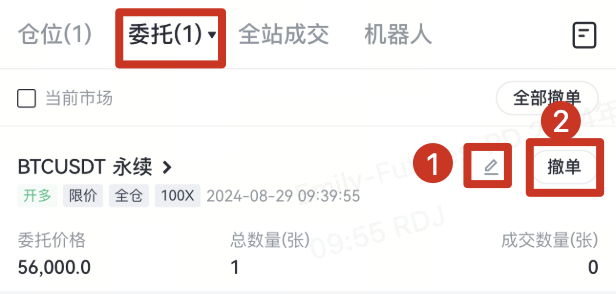
If the order isn't immediately filled or isn't fully filled, you can view it in the [Open Orders] tab. Click ① to cancel the order, or ② to modify its price and amount.

After the order is filled, you can view it in the [Positions] tab. In isolated mode, you can adjust the margin for a position. In cross mode, the entire balance of your futures account is used as margin by default.
Note: After the margin is adjusted, the liquidation price will be recalculated. Please be aware of the risk of liquidation.
App Version
Steps:
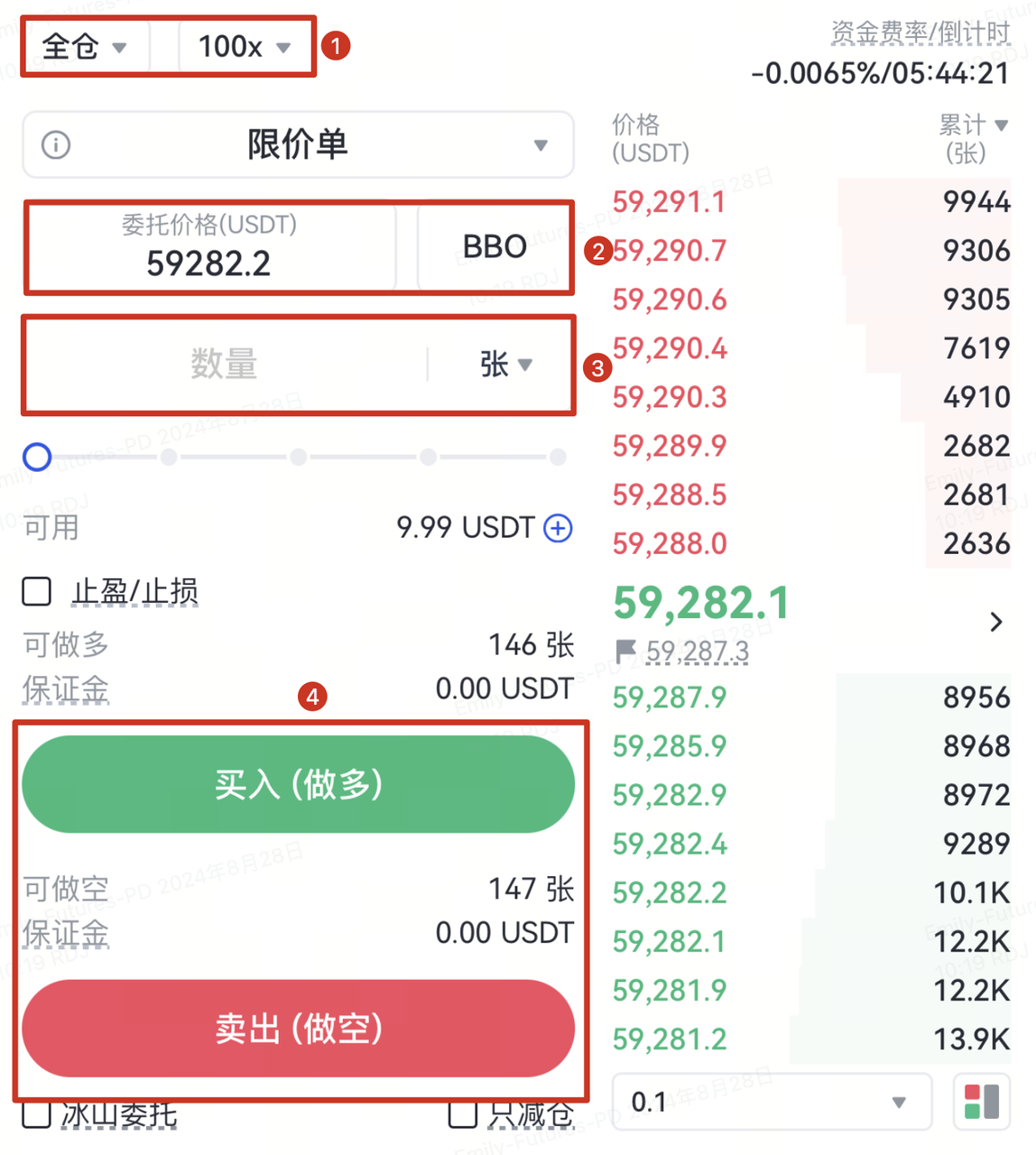
- Tap to select cross/isolated mode and set suitable leverage.
- Enter the price, or tap a price in the Order Book on the left to fill it in automatically.
- Enter the amount.
- Tap [Buy (Long)] or [Sell (Short)].
If the order isn't immediately filled or isn't fully filled, you can view it in the [Orders] tab. Tap ① to cancel the order, or ② to modify its price and amount.
After the order is filled, you can view it in the [Positions] tab. In isolated mode, you can adjust the margin for a position. In cross mode, the entire balance of your futures account is used as margin by default.
Note: After the margin is adjusted, the liquidation price will be recalculated. Please be aware of the risk of liquidation.
Close Position
Web Version
Click the [Limit/Market] in the [Positions] tab to quickly close the position.

If the order is not filled immediately, it will be displayed in the [Open Orders] tab, and you can view [Reduce-Only] in the order details. If you want to cancel the order, just click the [Cancel] button. Gate perpetual futures now supports the Cancel All feature. When you click the [Cancel All] button, all open orders and positions will be canceled at market price, allowing you to immediately exit all current positions.
Note: If you click [Cancel All] in USDT-M perpetual contracts, only your USDT-M positions will be closed, while BTC-M contracts will remain unaffected. To exit all positions across both USDT-M and BTC-M contracts, please use [Cancel All] separately on each corresponding trading page.
App Version
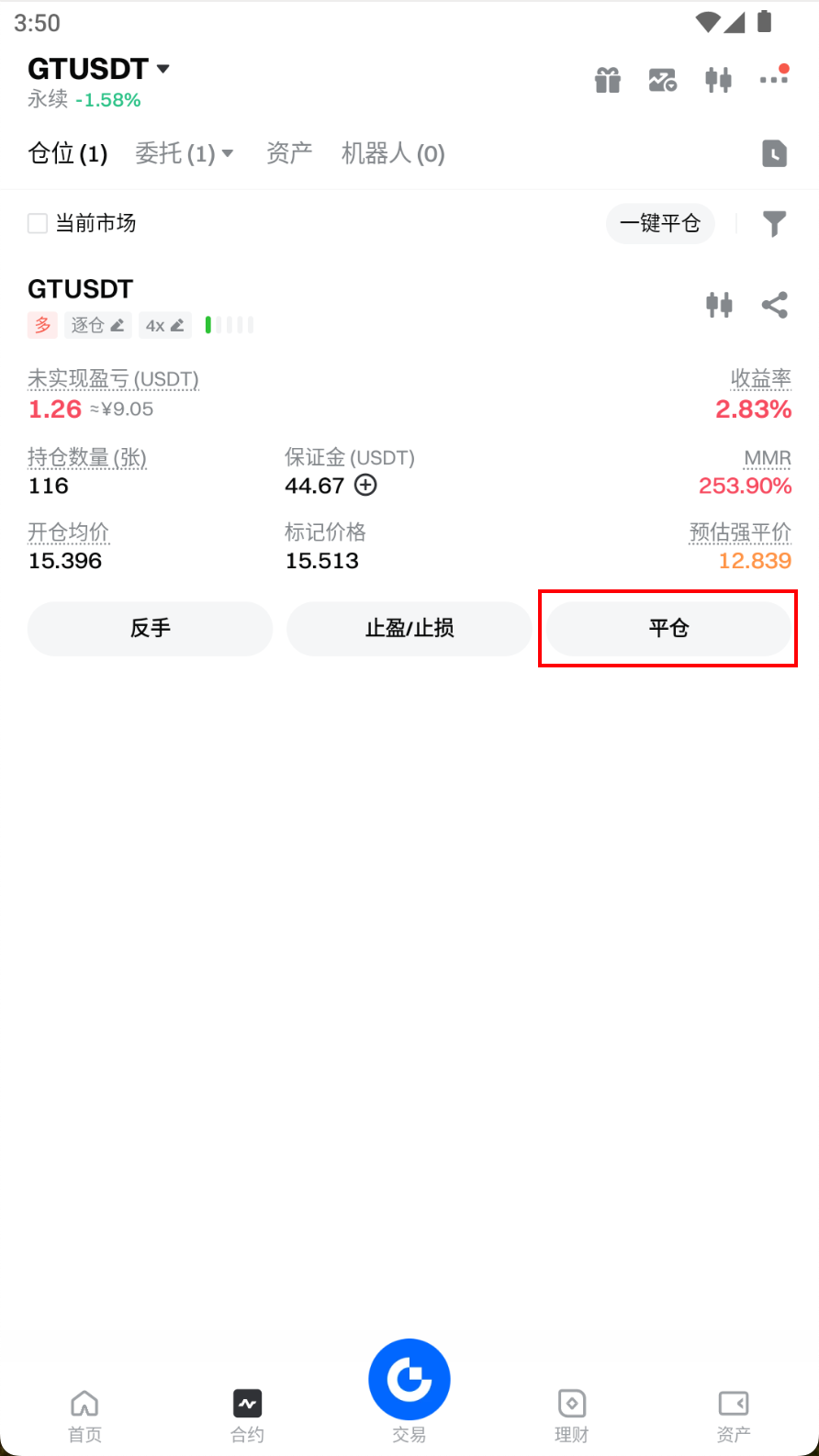
Tap the [Close] button in the [Positions] tab to quickly close your position.
If the order is not filled immediately, it will be displayed in the [Orders] tab, and you can view [Reduce-Only] in the order details. If you want to cancel the order, just tap the [Cancel] button. Gate perpetual futures now supports the Cancel All feature. When you tap the [Cancel All] button, all open orders and positions will be canceled at market price, allowing you to immediately exit all current positions.
**Note:** If you tap [Cancel All] in USDT-M perpetual contracts, only your USDT-M positions will be closed, while BTC-M contracts will remain unaffected. To exit all positions across both USDT-M and BTC-M contracts, please use [Cancel All] separately on each corresponding trading page.
Futures Order Failure Reasons
When opening or closing a position, some users may encounter situations where they are unable to open or close a position. The main reasons for failures are as follows:
Reasons for Position Opening Failures:
- Check whether your futures account has sufficient balance. If the balance is insufficient, a "Insufficient Balance" warning will appear. You can reduce your position size, increase leverage, or transfer funds to resolve the issue.
- The number of an order should be between 1 and 1,000,000 contracts, or the equivalent amount in the corresponding cryptocurrency. Orders exceeding this limit will fail.
- Selecting [Reduce-Only] when there are no open positions will cause the order to fail.
- If the order price exceeds the maximum price deviation, the order will fail.
- If the liquidation price exceeds the latest mark price, the order will fail as the position would be immediately liquidated after opening.
Reasons for Position Closing Failures:
- Closing a position does not require margin. However, if there is an existing exit order, any additional exit orders—such as TP/SL orders or other exit orders—will require margin. If your balance is insufficient, the order will fail.
- In the above situation, if one exit order is filled and the position is closed, any other exit orders (TP/SL or other types) will fail because they are "Reduce-Only" orders, which prevents increasing the position.
- The order price exceeds the bankruptcy price.
Gate reserves the final right to interpret the product.
The content provided herein is for reference and educational purposes only and does not constitute any financial, investment, trading, or legal advice, nor does it constitute an offer or solicitation to buy or sell any digital assets. Gate makes no express or implied representations or warranties regarding the accuracy, completeness, or timeliness of the information contained herein. Product features, interfaces, rules, and fee structures may be updated or adjusted at any time. Please refer to the latest announcements and the actual information displayed on the Gate platform for the most accurate details.
Digital asset investments involve significant risk, and prices may fluctuate substantially. You may lose the entire amount of your investment. Please make decisions cautiously based on your own financial situation and risk tolerance after fully understanding the associated risks. If necessary, you are advised to consult an independent professional financial or legal advisor.
For more information about potential risks, please refer to Gate's Risk Disclosure and User Agreement.